Event ID 4624, “An account was successfully logged on,” is a crucial entry in security log files, providing forensic insights into successful login attempts. This event captures various details including account name, account domain, logon ID, logon type, and more. Understanding the structure and information contained within Event ID 4624 is essential for monitoring and analyzing security events within a system.
Overview of Event ID 4624
Event ID 4624 logs successful logon attempts on a Windows system. This event is divided into seven blocks, each providing specific information about the logon event:
- Subject
- Logon Information
- Impersonation Level
- New Logon
- Process Information
- Network Information
- Detailed Authentication Information
Let’s take a look on which of them.
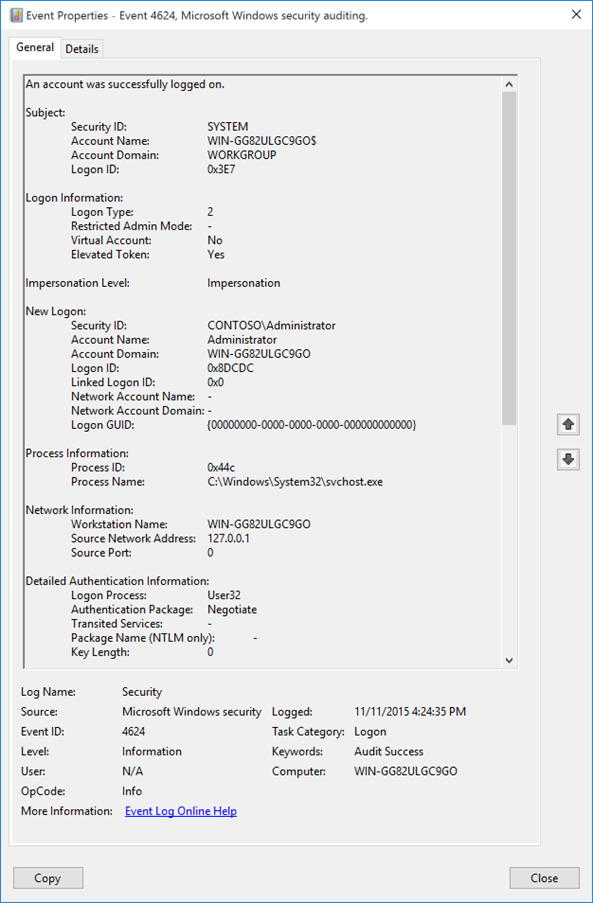
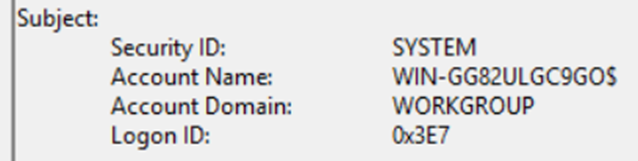
Subject includes details of the account that requested the logon NOT the user, In the example below we actually can see that this is the computer.
Logon Information includes Logon Type is one of the most interesting parts of the event ID 4624, that allows to identify the logon method/ the type of logon which was performed.
Logon Types and Descriptions
The Logon Type field within Event ID 4624 helps to identify the method or type of logon performed. Here’s a breakdown of the different logon types and their descriptions:
| Logon Type | Logon Title | Description |
| 0 | System | Used only by the System account, for example at system startup. |
| 2 | Interactive | A user logged on to this computer. |
| 3 | Network | A user or computer logged on to this computer from the network, f.eks. shared file access over SMB. |
| 4 | Batch | Batch logon type is used by batch servers, where processes may be executing on behalf of a user without their direct intervention, f.eks. scheduled tasks. |
| 5 | Service | Service was started by the Service Control Manager. |
| 7 | Unlock | This workstation was unlocked. |
| 8 | NetworkCleartext | A user logged on to this computer from the network. The user’s password was passed to the authentication package in its unhashed form. The built-in authentication packages all hash credentials before sending them across the network. The credentials do not traverse the network in plaintext (also called cleartext), Logon with credentials sent in the cleat text. |
| 9 | NewCredentials | A caller cloned its current token and specified new credentials for outbound connections. The new logon session has the same local identity but uses different credentials for other network connections f.eks. “Run as” |
| 10 | RemoteInteractive | A user logged on to this computer remotely using Terminal Services or Remote Desktop, f.eks RDP |
| 11 | CachedInteractive | A user logged on to this computer with network credentials that were stored locally on the computer. The domain controller was not contacted to verify the credentials. |
| 12 | CashedRemoteInteractive | Logon that occurs when the remote system is away from the network DC/ Use the cashed credentials for remote login |
| 13 | CashedUnlock | Unlock that occurs when the remote system is away from the network DC/ Use the cashed credentials to unlock the screen |
Impersonation Level
The impersonation level provides insights into the privileges associated with the logon session. Windows distinguishes between several impersonation levels, each indicating the extent of authority granted to the process or thread:
Anonymous: The process does not have any identity. The server process can’t obtain identification information about the client, and it can’t impersonate the client. It’s defined with no value given, and thus, by ANSI C rules, defaults to a value of zero.
Identification: The process is authorized to identify itself but cannot access resources. The server process can obtain information about the client, such as security identifiers and privileges, but it can’t impersonate the client. This value is useful for servers that export their own objects, for example, database products that export tables and views. Using the retrieved client-security information, the server can make access-validation decisions without being able to use other services that are using the client’s security context.
Impersonation: The process can access resources using the credentials of the client but cannot access network resources. The server process can impersonate the client’s security context on its local system. The server can’t impersonate the client on remote systems. This type is the most common.
Delegation: The process can access resources using the credentials of the client and access network resources on behalf of the client. The server process can impersonate the client’s security context on remote systems.
New Logon
The “New Logon” section encapsulates pivotal information pertaining to the newly established logon session. It includes details such as:
Security ID [Type = SID]: SID of account for which logon was performed. This identifier uniquely represents the security principal associated with the logon session. It could be a user, computer, or service account.
Account Name: The name of the account involved in the logon session, which could be a user account or a system account.
Account Domain: The domain or machine associated with the account attempting the logon.
Logon ID: A unique identifier assigned to the logon session, allowing administrators to correlate events related to the same logon session.
Process Information
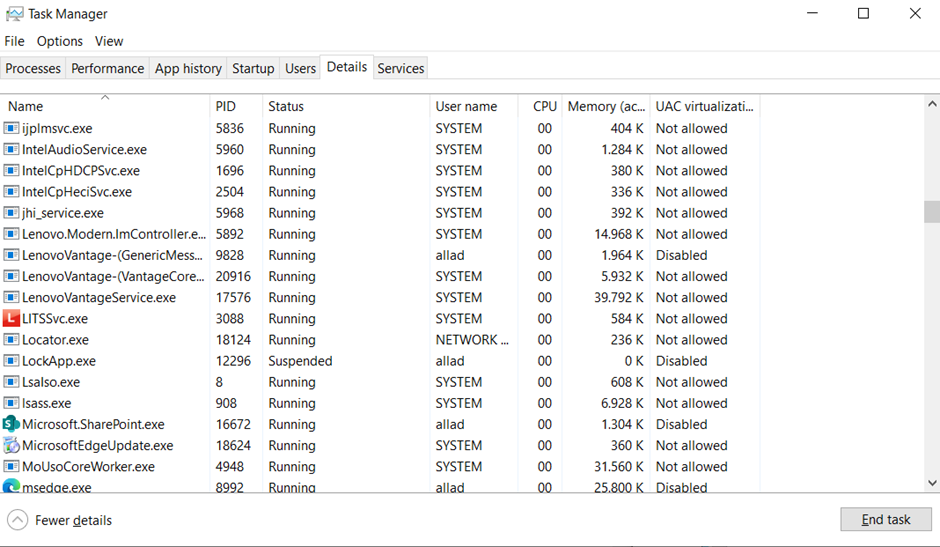
Process ID (PID): Process ID of the process that attempted the logon. Process ID (PID) is a number used by the operating system to uniquely identify an active process. To see the PID for a specific process you can, for example, use Task Manager (Details tab, PID column):
Process Name: full path and the name of the executable for the process.
Network Information
Workstation Name: The name of the workstation or computer from which the logon request originated. It provides visibility into the source system involved in the logon activity.
Source Network Address: P address of machine from which logon attempt was performed.
Source Port: The source port that was used for logon attempt from remote machine.
Detailed Authentication Information
- Logon Process [Type = UnicodeString]: the name of the trusted logon process that was used for the logon. See event “4611: A trusted logon process has been registered with the Local Security Authority” description for more information.
- Authentication Package [Type = UnicodeString]: The name of the authentication package that was used for the logon authentication process. Default packages loaded on LSA startup are located in “HKLM\SYSTEM\CurrentControlSet\Control\Lsa\OSConfig” registry key. Other packages can be loaded at runtime. When a new package is loaded a “4610: An authentication package has been loaded by the Local Security Authority” (typically for NTLM) or “4622: A security package has been loaded by the Local Security Authority” (typically for Kerberos) event is logged to indicate that a new package has been loaded along with the package name. The most common authentication packages are:
- NTLM – NTLM-family Authentication
- Kerberos – Kerberos authentication.
- Negotiate – the Negotiate security package selects between Kerberos and NTLM protocols. Negotiate selects Kerberos unless it can’t be used by one of the systems involved in the authentication or the calling application didn’t provide sufficient information to use Kerberos.
- Transited Services [Type = UnicodeString] [Kerberos-only]: the list of transmitted services. Transmitted services are populated if the logon was a result of a S4U (Service For User) logon process. S4U is a Microsoft extension to the Kerberos Protocol to allow an application service to obtain a Kerberos service ticket on behalf of a user – most commonly done by a front-end website to access an internal resource on behalf of a user. For more information about S4U, see https://msdn.microsoft.com/library/cc246072.aspx
- Package Name (NTLM only) [Type = UnicodeString]: The name of the LAN Manager subpackage (NTLM-family protocol name) that was used during logon. Possible values are:
- “NTLM V1”
- “NTLM V2”
- “LM”
Only populated if “Authentication Package” = “NTLM”.
- Key Length [Type = UInt32]: the length of NTLM Session Security key. Typically it has 128-bit or 56-bit length. This parameter is always 0 if “Authentication Package” = “Kerberos”, because it isn’t applicable for Kerberos protocol. This field also has a
0value if Kerberos was negotiated using Negotiate authentication package.
Conclusion
Understanding Event ID 4624 is vital for security monitoring and forensic analysis. By carefully examining the information contained within these logs, administrators can gain valuable insights into successful login attempts and potential security threats.
For further reference, Microsoft’s documentation on Event ID 4624 and additional resources such as UltimateWindowsSecurity.com provide comprehensive insights into Windows security auditing and event log analysis.
References:
– [Microsoft Documentation on Event ID 4624](https://learn.microsoft.com/en-us/windows/security/threat-protection/auditing/event-4624)
– [Ultimate Windows Security: Event ID 4624](https://www.ultimatewindowssecurity.com/securitylog/book/page.aspx?spid=chapter3)